Hi Guys,
Call to any phone FREE of cost, from yahoo messenger...Here is how it works:
First call +18003733411 in the messenger, its a toll free number...listen to what it says and go for Free phone
Showing posts with label Tips n Tricks. Show all posts
Showing posts with label Tips n Tricks. Show all posts
Friday, August 14, 2009


Thursday, December 4, 2008
How to recover a deleted file in windows (Shift + Del)
You all might be wondering, how to recover a file when it is permanently deleted (shift + del) from the system. Lemme put it this way, if you clear the files from the Recycle bin in windows, then here is the tip to restore your files.
Step by Step procedure to restore: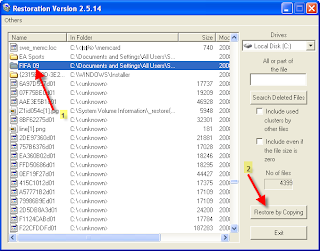
Fact: When a file is deleted from your computer, its contents aren’t immediately destroyed. Its hard drive space is made available for use, but until that space is overwritten, your old data is usually intact. Restoration by Brian Kato recovers such files on either FAT or NTFS partitions. Only 406 KB (or 200 KB for XP or 2K), it fits easily on a floppy, or runs from your hard drive. Generally, the sooner you try to restore a file, the more successful you’ll be.
Step by Step procedure to restore:

- Download the Restoration file from here and extract it.
- After extracting go to the location where the files got extracted and locate a folder which is something like this REST2514.
- There double click on the Restoration MFC Application and choose the drive from where the files are been deleted. Now click on Search Deleted Files button (look at the image for more details).
- Now choose your files and restore them.
Saturday, November 22, 2008
Tips To Avoid Virus Attacks
Computers are always prone to virus attacks through many ways like when we insert USB which is virus infected or by clicking anonymous pop-ups/links..the list goes on. And there are many anti-virus software's available in the market to prevent these virus attacks, I would like to share some of my views on how to prevent virus attacks and important tips that one must remember on how to tackle virus infected systems.
How to prevent attacks?
Always remember prevention is better than cure. Following are the points to remember:
How to remove them?
Important Windows Commands/Tools
How to prevent attacks?
Always remember prevention is better than cure. Following are the points to remember:
- Install a complete/stable version of Antivirus software, I would suggest Norton Internet Security. Remember to do atleast weekly maintance of your antivirus by updating the signatures and scanning your system.
- Never click on any pop-ups/ads and any links that are sent to you by anonymous people.
- Most Importantly never click on the spam mails..don't get excited when y
 ou see mails like
"YOU HAVE GOT 100000$ claim it" lol..nobody will give you money for free, instead you will get virus for free. So add them to your spam list of your email to prevent it completely. - If you are using Windows Operating system, keep the default Firewall always ON or install 3'rd party firewall to prevent intrusions.
- Don't try to download/install keygens/cracks. Most of the anti virus software's quarantine them whenever they are caught.
- Last but not least never forget to scan the USB or any external device when connected to your system, the hidden viruses of USB like amvo.exe etc hide in the background and attack your system when opened/double clicked.

How to remove them?
- Always backup your important files into DVD's or External HDD's. As long as you don't have any important data in your system..you are safe and can wage a direct attack on viruses :p.
- Download autoruns, procexp and other very important tools from sysinternals and keep track of your startup programs and processes that are running. If you find anything suspicious immediately kill that process and remove autorun of that process(shown in the image).
- Now disable windows restore and scan the system completely. If you don't find anything then try to find them by some simple windows commands, ill discuss them in the following sections.
Important Windows Commands/Tools
- To see hidden files goto command prompt and
attrib -aIf you find anything interesting delete it.
- Download this Kill-amvo.exe a powerfull small program written in VB to kill USB viruses like amvo.exe.
- As I mentioned earlier download some very essential tools to keep track of the processes from sysinternals.com
Friday, September 28, 2007
Friday, September 21, 2007
ʇxǝʇ ǝɥʇ dılɟ
Follow the link ->http://www.revfad.com/flip.html

Just another innovative idea to use in orkut's profile name.

Just another innovative idea to use in orkut's profile name.
Friday, September 14, 2007
Change background of the USB drive
Change the background of the USB drive in less than 10 secs. You can add any image. Here are the steps to follow:
- Open a "notepad". (Note: start->run->notepad).
- Copy the following code into the notepad
[.ShellClassInfo]
IconFile=%SystemRoot%\system32\SHELL32.dll
IconIndex=127
ConfirmFileOp=0

[{BE098140-A513-11D0-A3A4-00C04FD706EC}]
Attributes=1
IconArea_Image="your_picture.jpg"
IconArea_Text="0xFFFFFF"
VeBRA sources - don't delete the tag above, it's there for XXXXX purposes -
[ExtShellFolderViews]
{BE098140-A513-11D0-A3A4-00C04FD706EC}={BE098140-A513-11D0-A3A4-00C04FD706EC}
{5984FFE0-28D4-11CF-AE66-08002B2E1262}={5984FFE0-28D4-11CF-AE66-08002B2E1262}

[{5984FFE0-28D4-11CF-AE66-08002B2E1262}]
PersistMoniker=Folder.htt
PersistMonikerPreview=%WebDir%\folder.bmp
- Save the notepad as "desktop.ini".
- Now copy the image (Note:image you wan to use as background) and desktop ini to the usb. Hide the desktop.ini and refresh.
Sunday, September 9, 2007
How to get acess to the Members area?
This summary is not available. Please
click here to view the post.
Tuesday, July 10, 2007
How to use Peer to Peer softwares for downloading?
This is a frequent question asked by my fellow bloggers and friends. Though its easy but tricky at times. It is advisible to know about the Peer2Peer network and its consequences. I do not want to go in detail about the softwares coz you will get many peer to peer softwares if you google. I use Ares software for downloading movies and mp3's. Let us see the working of ares and the same applies to almost any p2p software.
--Download the software and install it. It is readily and freely available on web.
--Download the software and install it. It is readily and freely available on web.

--Now after your online go to Control Panel tab its last one of the seven tabs. Make some small changes according to your requirements. Under control panel you have 8 tabs. General, Transfer, Chat etc etc.. Select the transfer tab and change the folder(if req). Ensure that the folder you have selected has enough space. Because whatever you download will go to that folder. And the same folder is shared with other peers. So ensure that the folder contains no personal data.

--Now go to Search tab and Enter what ever you want like movies. You will get many results depending on the popularity of the search. For eg: I searched for Backstreet and I got thousand's of results. There you have to download the one which has got more stars(many users have that file). Double click on that to download. You can see all the downloads of yours in Transfer tab.
You can pause and resume or preview the movies whenever you want.
[Note1: Preview the movies with the help of vlc player or divx]
[Note2: Read the comments before downloading because there may be fake movies]
These are some of the basic things to be known for downloading. You will slowely master the art of using P2P by working on it. For any other queries do not hesitate to comment.
Sunday, April 29, 2007
Hide your secret file in a image
This is by far the best way to hide your data in a image. This trick works in Windows 2000/xp. Follow the step by step tutorial.
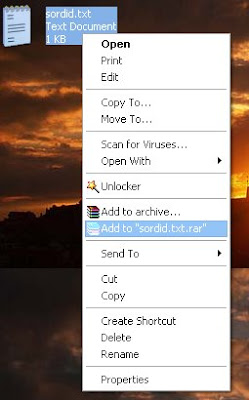
- You need two images and one file(which you want to bind with the image). Place them all in one folder.
- Add the files you want to hide into a new winrar archive. (eg: I want to hide sordid.txt)
- Open the command prompt (start-> run-> cmd). Change the directory to where the files are located (two images and one file).
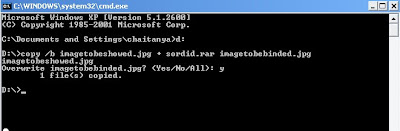
- In command prompt type
copy /b imagetobeshowed.jpg + sordid.rar imagetobebinded.jpg
*imagetobeshowed is the image which is shown, *sordid.rar contains the text to hide and *imagetobebinded is the image which is binded with the text. You can change the names. look at the image for further clarification.

- Now test the imagetobeshowed.jpg by double clicking it, and verifying it still opens.
- Now again open the same image with winrar. Riteclk->openwith->winrar. It will show the hidden file.
Wednesday, April 25, 2007
Increase Your Cable/DSL Speed!

Instead of using download accelerators and slowing down your browsing speed. This is one of the easiest ways to increase your Cable speed.
Copy the following code in italic into the notepad and save the file with *.reg extension.
REGEDIT4

[HKEY_LOCAL_MACHINE\SYSTEM\CurrentControlSet\Servic es\Tcpip\Parameters]
"GlobalMaxTcpWindowSize"=dword:0000ffff
double click on the registry file and restart your computer. After registering successfully check your speed @ http://www.speakeasy.net/speedtest/ . It must increase. Well if your aren't satisfied with the results undo the registry. i.e copy the following code same as above and double click on the default registry file.
REGEDIT4
[HKEY_LOCAL_MACHINE\SYSTEM\CurrentControlSet\Servic es\Tcpip\Parameters]
"GlobalMaxTcpWindowSize"=dword:00007fff
If you are finding the tutorial burdensome, then download the following registry files.
Tweak file @ Speed up
Default @ Undo
I couldn't post frequently coz of exams. I will roll back soon!
Saturday, March 3, 2007
Adding "Find Target" To The Shorcuts
Find Target is not present directly on the menu of a shortcut. This makes the job tough in finding the target of the shortcuts on the desktop. We can fix this with the help of some code and notepad.
Code:
is created...DO NOT TOUCH THAT FILE!
Code:
@echo off
setlocal
set FT="%TEMP%\Find_Target.tmp"
set FTV="C:\Find_Target.vbs"
@echo REGEDIT4>%FT%
@echo.>>%FT%
@echo [HKEY_CLASSES_ROOT\lnkfile\Shell\Find Target\command]>>%FT%
@echo @="wscript.exe \"C:\\Find_target.vbs\" \"%%1\"">>%FT%
@echo.>>%FT%
@echo.>>%FT%
@echo Dim param, filenam, targt, shortct>%FTV%
@echo Set param = WScript.Arguments>>%FTV%
@echo filenam = param (0)>>%FTV%
@echo Set WshShell = WScript.CreateObject("WScript.Shell")>>%FTV%
@echo Set shortct = WshShell.CreateShortcut(filenam)>>%FTV%
@echo targt = shortct.TargetPath>>%FTV%
@echo WshShell.Run "%windir%\explorer.exe /select," ^& Chr(34) ^& targt ^& Chr(34)>>%FTV%
regedit /s %FT%
del /q %FT%
endlocal
- Copy and paste this code in Notepad
- Save this file as Find_Target.bat in the root drive of your OS(directly in the drive where Documents and Settings, Program Files and WINDOWS reside)
- Run Find_Target.bat (Just press Enter!)
Monday, February 26, 2007
Fixing 'No Slot' Error in Megaupload
Most of the time Megaupload restricts us from downloading files by showing the "No Slot" error. And this can fixed using various tricks.
First go to http://addons.mozilla.org/firefox/59/
Click Install Now to install addon.
Restart FireFox. Tool-->User Agent Switcher--->Options--->Options
Click User Agents--->Add
Type this:
+ Description: MEGAUPLOAD
+ User Agent: Mozilla/4.0 (compatible; MSIE 6.0; Windows NT 5.1; SV1; Alexa Toolbar)
Click OK twice to finish adding User Agent.
From now, before downloading any file on megaupload just go Tools--> User Agent Switcher--->MEGAUPLOAD.
For IE:
Start/run->> type regedit -> ok
Go to: [HKEY_LOCAL_MACHINE\SOFTWARE\Micr@$@ft\Windows
\CurrentVersion\Internet Settings\5.0\User Agent\Post Platform]
Note: if U use IE 7
go to: [HKEY_LOCAL_MACHINE\SOFTWARE\Micr@$@ft\Windows
\CurrentVersion\Internet Settings\User Agent\Post Platform]
Right click on Post Platform > New > String Value > type Alexa Toolbar > ok
Now U can download from megaupload without error : "All download slots (..) assigned to your country (....) are in use"
Happy mega mega uploading...

- Try changing the proxy and use the proxy of U.S or U.K because they enjoy the unlimited free download services.
- Download the Megaupload Toolbar(Alexa). I downloaded it but my antivirus recognized at as ad-ware and blocked it. So download it at your own risk.
- The better and recommended trick is to fool the Megaupload by editing some registry.
First go to http://addons.mozilla.org/firefox/59/
Click Install Now to install addon.
Restart FireFox. Tool-->User Agent Switcher--->Options--->Options
Click User Agents--->Add
Type this:
+ Description: MEGAUPLOAD
+ User Agent: Mozilla/4.0 (compatible; MSIE 6.0; Windows NT 5.1; SV1; Alexa Toolbar)
Click OK twice to finish adding User Agent.
From now, before downloading any file on megaupload just go Tools--> User Agent Switcher--->MEGAUPLOAD.
For IE:
Start/run->> type regedit -> ok
Go to: [HKEY_LOCAL_MACHINE\SOFTWARE\Micr@$@ft\Windows
\CurrentVersion\Internet Settings\5.0\User Agent\Post Platform]
Note: if U use IE 7
go to: [HKEY_LOCAL_MACHINE\SOFTWARE\Micr@$@ft\Windows
\CurrentVersion\Internet Settings\User Agent\Post Platform]
Right click on Post Platform > New > String Value > type Alexa Toolbar > ok
Now U can download from megaupload without error : "All download slots (..) assigned to your country (....) are in use"
Happy mega mega uploading...
Saturday, February 17, 2007
How to preview movies from Multi part .RAR Aechives
If you have downloaded movies, in RAR Archives that have been split up into more than one parts using a Winrar you will know how frustrating it can be coz the movie may be one you already own or it may even be the wrong one. And to preview it you need to download all the parts.
Heres a method to preview the movie by downloading only the first part.
To preview .mpg .wmv .avi .mp3 files -
Things you need -
1. Winrar Archiver
2. Password for the RAR Archive, if it is password protected
3. A Media Player like Winamp, WMP..............
How to do it -
Lets assume that you want to preview a movie that has been converted into 7 RAR Archives named - claudia_ferrari_shq.part1.rar, claudia_ferrari_shq.part2.rar, .............., claudia_ferrari_shq.part7.rar.
And lets say you have downloaded claudia_ferrari_shq.part1.rar and want to preview the move inside it. (Note for this to work you must download the first part. It doesnt matter if you download any number of parts as long as they are in order, ie. dont download the last part first).
Now open the first part with Winrar. And click on Extract To button.

Now comes the important part DON'T FORGET TO CHECK THE Keep broken files BOX AS SHOWN IN PICTURE -
You can either enter a custom address to save the clip in or you can continue with the default address, like I did. Click Extract. If the file is password protected you will be prompted to enter the password, in this case enter the password and click ok. If you downloaded more than one archive (in this case I have downloaded 3 parts - claudia_ferrari_shq.part1.rar, claudia_ferrari_shq.part2.rar, claudia_ferrari_shq.part3.rar) you will get the following message -
Click Process All files in all volumes from the current, to extract files from all the downloaded parts. After this you will be able to see the extraction screen -
After the files from the parts have been ectracted you will prompted to give the path for the
next part.
Now click Cancel. On doing this an error window will pop-up.
Click Close.
Now go to the pathname which you initially gave, while extracting the file.
And voila you will have the preview. Play this file with your default Media Player.
Sometimes while trying to preview .avi files you may get an error. You can remedy this by playing it in some other player like, Power DVD XP or I strictly recommend vlc player of http://www.videolan.org/ to watch the movie!!! (of course, only the downloaded part will be watchable.
2. To extract Bin-Cue files -
Things you need -
1. Winrar Archiver
2. VCD Gear
3. A Media Player
How to do it -
Follow the procedure for extraction, as given above.
Now in the new folder that has been created there will be two files -
1. A .bin file
2. A .cue file
Now open VCD Gear, and in the Window click LOAD and then give the pathname of the .cue file.
On doing so, it will ask for a file name. You can either save it with default name or give your own name. Click OK
After the process finishes, go to the folder containing the .cue file. There will be a .mpg file in that folder now. Play the .mpg file and this will be the preview of the movie you are downloading.
Hope you ppl found this tutorial simple and helpful.
Heres a method to preview the movie by downloading only the first part.
To preview .mpg .wmv .avi .mp3 files -
Things you need -
1. Winrar Archiver
2. Password for the RAR Archive, if it is password protected
3. A Media Player like Winamp, WMP..............
How to do it -
Lets assume that you want to preview a movie that has been converted into 7 RAR Archives named - claudia_ferrari_shq.part1.rar, claudia_ferrari_shq.part2.rar, .............., claudia_ferrari_shq.part7.rar.
And lets say you have downloaded claudia_ferrari_shq.part1.rar and want to preview the move inside it. (Note for this to work you must download the first part. It doesnt matter if you download any number of parts as long as they are in order, ie. dont download the last part first).
Now open the first part with Winrar. And click on Extract To button.

Now comes the important part DON'T FORGET TO CHECK THE Keep broken files BOX AS SHOWN IN PICTURE -

You can either enter a custom address to save the clip in or you can continue with the default address, like I did. Click Extract. If the file is password protected you will be prompted to enter the password, in this case enter the password and click ok. If you downloaded more than one archive (in this case I have downloaded 3 parts - claudia_ferrari_shq.part1.rar, claudia_ferrari_shq.part2.rar, claudia_ferrari_shq.part3.rar) you will get the following message -

Click Process All files in all volumes from the current, to extract files from all the downloaded parts. After this you will be able to see the extraction screen -
After the files from the parts have been ectracted you will prompted to give the path for the
next part.

Now click Cancel. On doing this an error window will pop-up.

Click Close.
Now go to the pathname which you initially gave, while extracting the file.

And voila you will have the preview. Play this file with your default Media Player.
Sometimes while trying to preview .avi files you may get an error. You can remedy this by playing it in some other player like, Power DVD XP or I strictly recommend vlc player of http://www.videolan.org/ to watch the movie!!! (of course, only the downloaded part will be watchable.
2. To extract Bin-Cue files -
Things you need -
1. Winrar Archiver
2. VCD Gear
3. A Media Player
How to do it -
Follow the procedure for extraction, as given above.
Now in the new folder that has been created there will be two files -
1. A .bin file
2. A .cue file
Now open VCD Gear, and in the Window click LOAD and then give the pathname of the .cue file.
On doing so, it will ask for a file name. You can either save it with default name or give your own name. Click OK
After the process finishes, go to the folder containing the .cue file. There will be a .mpg file in that folder now. Play the .mpg file and this will be the preview of the movie you are downloading.
Hope you ppl found this tutorial simple and helpful.
Friday, February 16, 2007
Transform XP to vista in less than one hour
You can be holdout and use a few XP-based freebies that do a surprisingly good job of emulating some of vista's fancy graphic features. Some of the apps are listed below.
Copernic Desktop Search: Vista's Search is fast and smart and so is Copernic's, with keyword, file content, Boolean and wildcard searches. If you don't like the look and feel of copernic. Google Desktop makes a good substitute.
Desktop Sidebar: Vista has a handy windows Sidebar with calendars,calculators, a quick link to your media player and RSS feeds. Desktop Sidebar offers similar features, with zillion of add-ons including a file browser, a weather summary, news updates and an e-mail checker. Too complicated for you? Then try the simple LaunchBar Commander. which lets you create a multiple on-screen panels for launching various applications and documents.
Vista Start Menu SE: This utility creates a fair limitation of Vista's Start menu, but adds functions that Vista lacks, built-in shortcut keys to frequently used windows functions as Reboot, Switch Users, and Hibernate. Another great alternative for organizing apps and files is JetStart FREE; it's faster than Vista Start Menu SE, but less fancy.
Visual Task Tips: This clever tool pops up a preview, a miniature image of the open window in the taskbar. Scroll you mouse wheel up or down the image to resize it.
Folder Marker: Customize your folder icons and icon backgrounds with Vista icons. Folder Marker is a snap to use, and you can visit Horizon Software to download a bunch of Vista icons.
WindowBlinds 5: One prominent Vista feature you might like is Windows Glass, the semitransparent colored edges that Windows Aero has. WindowBlinds 5 provides skins, visual styles and themes that allow you to change the look and feel of many parts of Windows XP. Its not a FREE software(though you can get the crack), lets you midify toolbar icons, the Start Menu and Start button as well. Get the Vista Plus Version 2 skin at the WinCustomize site.
Copernic Desktop Search: Vista's Search is fast and smart and so is Copernic's, with keyword, file content, Boolean and wildcard searches. If you don't like the look and feel of copernic. Google Desktop makes a good substitute.
Desktop Sidebar: Vista has a handy windows Sidebar with calendars,calculators, a quick link to your media player and RSS feeds. Desktop Sidebar offers similar features, with zillion of add-ons including a file browser, a weather summary, news updates and an e-mail checker. Too complicated for you? Then try the simple LaunchBar Commander. which lets you create a multiple on-screen panels for launching various applications and documents.

Vista Start Menu SE: This utility creates a fair limitation of Vista's Start menu, but adds functions that Vista lacks, built-in shortcut keys to frequently used windows functions as Reboot, Switch Users, and Hibernate. Another great alternative for organizing apps and files is JetStart FREE; it's faster than Vista Start Menu SE, but less fancy.
Visual Task Tips: This clever tool pops up a preview, a miniature image of the open window in the taskbar. Scroll you mouse wheel up or down the image to resize it.
Folder Marker: Customize your folder icons and icon backgrounds with Vista icons. Folder Marker is a snap to use, and you can visit Horizon Software to download a bunch of Vista icons.
WindowBlinds 5: One prominent Vista feature you might like is Windows Glass, the semitransparent colored edges that Windows Aero has. WindowBlinds 5 provides skins, visual styles and themes that allow you to change the look and feel of many parts of Windows XP. Its not a FREE software(though you can get the crack), lets you midify toolbar icons, the Start Menu and Start button as well. Get the Vista Plus Version 2 skin at the WinCustomize site.
Thursday, February 15, 2007
100 top shortcut keys
Relax on a chair with keyboard on your lap and legs on the table in front of the monitor. Holding mouse every time for lil things is certainly frustrating, Start learning shortcut keys and do the work as quickly as possible while relaxing, excuse me if you're Laptop user ;).
100 TOP SHORTCUT KEYZ
 CTRL+C (Copy)
CTRL+X (Cut)
CTRL+V (Paste)
CTRL+Z (Undo)
DELETE (Delete)
SHIFT+DELETE (Delete the selected item permanently without placing the item in the Recycle Bin)
CTRL while dragging an item (Copy the selected item)
CTRL+SHIFT while dragging an item (Create a shortcut to the selected item)
F2 key (Rename the selected item)
CTRL+RIGHT ARROW (Move the insertion point to the beginning of the next word)
CTRL+LEFT ARROW (Move the insertion point to the beginning of the previous word)
CTRL+DOWN ARROW (Move the insertion point to the beginning of the next paragraph)
CTRL+UP ARROW (Move the insertion point to the beginning of the previous paragraph)
CTRL+SHIFT with any of the arrow keys (Highlight a block of text)
SHIFT with any of the arrow keys (Select more than one item in a window or on the desktop, or select text in a document)
CTRL+A (Select all)
F3 key (Search for a file or a folder)
ALT+ENTER (View the properties for the selected item)
ALT+F4 (Close the active item, or quit the active program)
ALT+ENTER (Display the properties of the selected object)
ALT+SPACEBAR (Open the shortcut menu for the active window)
CTRL+F4 (Close the active document in programs that enable you to have multiple documents open simultaneously)
ALT+TAB (Switch between the open items)
ALT+ESC (Cycle through items in the order that they had been opened)
F6 key (Cycle through the screen elements in a window or on the desktop)
F4 key (Display the Address bar list in My Computer or Windows Explorer)
SHIFT+F10 (Display the shortcut menu for the selected item)
ALT+SPACEBAR (Display the System menu for the active window)
CTRL+ESC (Display the Start menu)
ALT+Underlined letter in a menu name (Display the corresponding menu)
Underlined letter in a command name on an open menu (Perform the corresponding command)
F10 key (Activate the menu bar in the active program)
RIGHT ARROW (Open the next menu to the right, or open a submenu)
LEFT ARROW (Open the next menu to the left, or close a submenu)
F5 key (Update the active window)
BACKSPACE (View the folder one level up in My Computer or Windows Explorer)
ESC (Cancel the current task)
SHIFT when you insert a CD-ROM into the CD-ROM drive (Prevent the CD-ROM from automatically playing)
Dialog Box Keyboard Shortcuts
CTRL+TAB (Move forward through the tabs)
CTRL+SHIFT+TAB (Move backward through the tabs)
TAB (Move forward through the options)
SHIFT+TAB (Move backward through the options)
ALT+Underlined letter (Perform the corresponding command or select the corresponding option)
ENTER (Perform the command for the active option or button)
SPACEBAR (Select or clear the check box if the active option is a check box)
Arrow keys (Select a button if the active option is a group of option buttons)
F1 key (Display Help)
F4 key (Display the items in the active list)
BACKSPACE (Open a folder one level up if a folder is selected in the Save As or Open dialog box)
m*cro$oft Natural Keyboard Shortcuts
Windows Logo (Display or hide the Start menu)
Windows Logo+BREAK (Display the System Properties dialog box)
Windows Logo+D (Display the desktop)
Windows Logo+M (Minimize all of the windows)
Windows Logo+SHIFT+M (Restore the minimized windows)
Windows Logo+E (Open My Computer)
Windows Logo+F (Search for a file or a folder)
CTRL+Windows Logo+F (Search for computers)
Windows Logo+F1 (Display Windows Help)
Windows Logo+ L (Lock the keyboard)
Windows Logo+R (Open the Run dialog box)
Windows Logo+U (Open Utility Manager)
Accessibility Keyboard Shortcuts
Right SHIFT for eight seconds (Switch FilterKeys either on or off)
Left ALT+left SHIFT+PRINT SCREEN (Switch High Contrast either on or off)
Left ALT+left SHIFT+NUM LOCK (Switch the MouseKeys either on or off)
SHIFT five times (Switch the StickyKeys either on or off)
NUM LOCK for five seconds (Switch the ToggleKeys either on or off)
Windows Logo +U (Open Utility Manager)
Windows Explorer Keyboard Shortcuts
END (Display the bottom of the active window)
HOME (Display the top of the active window)
NUM LOCK+Asterisk sign (*) (Display all of the subfolders that are under the selected folder)
NUM LOCK+Plus sign (+) (Display the contents of the selected folder)
NUM LOCK+Minus sign (-) (Collapse the selected folder)
LEFT ARROW (Collapse the current selection if it is expanded, or select the parent folder)
RIGHT ARROW (Display the current selection if it is collapsed, or select the first subfolder)
Shortcut Keys for Character Map
After you double-click a character on the grid of characters, you can move through the grid by using the keyboard shortcuts:
RIGHT ARROW (Move to the right or to the beginning of the next line)
LEFT ARROW (Move to the left or to the end of the previous line)
UP ARROW (Move up one row)
DOWN ARROW (Move down one row)
PAGE UP (Move up one screen at a time)
PAGE DOWN (Move down one screen at a time)
HOME (Move to the beginning of the line)
END (Move to the end of the line)
CTRL+HOME (Move to the first character)
CTRL+END (Move to the last character)
SPACEBAR (Switch between Enlarged and Normal mode when a character is selected)
m*cro$oft Management Console (MMC) Main Window Keyboard Shortcuts
CTRL+O (Open a saved console)
CTRL+N (Open a new console)
CTRL+S (Save the open console)
CTRL+M (Add or remove a console item)
CTRL+W (Open a new window)
F5 key (Update the content of all console windows)
ALT+SPACEBAR (Display the MMC window menu)
ALT+F4 (Close the console)
ALT+A (Display the Action menu)
ALT+V (Display the View menu)
ALT+F (Display the File menu)
ALT+O (Display the Favorites menu)
MMC Console Window Keyboard Shortcuts
CTRL+P (Print the current page or active pane)
ALT+Minus sign (-) (Display the window menu for the active console window)
SHIFT+F10 (Display the Action shortcut menu for the selected item)
F1 key (Open the Help topic, if any, for the selected item)
F5 key (Update the content of all console windows)
CTRL+F10 (Maximize the active console window)
CTRL+F5 (Restore the active console window)
ALT+ENTER (Display the Properties dialog box, if any, for the selected item)
F2 key (Rename the selected item)
CTRL+F4 (Close the active console window. When a console has only one console window, this shortcut closes the console)
Remote Desktop Connection Navigation
CTRL+ALT+END (Open the m*cro$oft Windows NT Security dialog box)
ALT+PAGE UP (Switch between programs from left to right)
ALT+PAGE DOWN (Switch between programs from right to left)
ALT+INSERT (Cycle through the programs in most recently used order)
ALT+HOME (Display the Start menu)
CTRL+ALT+BREAK (Switch the client computer between a window and a full screen)
ALT+DELETE (Display the Windows menu)
CTRL+ALT+Minus sign (-) (Place a snapshot of the active window in the client on the Terminal server clipboard and provide the same functionality as pressing PRINT SCREEN on a local computer.)
CTRL+ALT+Plus sign (+) (Place a snapshot of the entire client window area on the Terminal server clipboard and provide the same functionality as pressing ALT+PRINT SCREEN on a local computer.)
m*cro$oft Internet Explorer Navigation
CTRL+B (Open the Organize Favorites dialog box)
CTRL+E (Open the Search bar)
CTRL+F (Start the Find utility)
CTRL+H (Open the History bar)
CTRL+I (Open the Favorites bar)
CTRL+L (Open the Open dialog box)
CTRL+N (Start another instance of the browser with the same Web address)
CTRL+O (Open the Open dialog box, the same as CTRL+L)
CTRL+P (Open the Print dialog box)
CTRL+R (Update the current Web page)
CTRL+W (Close the current window)
********THE END**********
100 TOP SHORTCUT KEYZ
 CTRL+C (Copy)
CTRL+X (Cut)
CTRL+V (Paste)
CTRL+Z (Undo)
DELETE (Delete)
SHIFT+DELETE (Delete the selected item permanently without placing the item in the Recycle Bin)
CTRL while dragging an item (Copy the selected item)
CTRL+SHIFT while dragging an item (Create a shortcut to the selected item)
F2 key (Rename the selected item)
CTRL+RIGHT ARROW (Move the insertion point to the beginning of the next word)
CTRL+LEFT ARROW (Move the insertion point to the beginning of the previous word)
CTRL+DOWN ARROW (Move the insertion point to the beginning of the next paragraph)
CTRL+UP ARROW (Move the insertion point to the beginning of the previous paragraph)
CTRL+SHIFT with any of the arrow keys (Highlight a block of text)
SHIFT with any of the arrow keys (Select more than one item in a window or on the desktop, or select text in a document)
CTRL+A (Select all)
F3 key (Search for a file or a folder)
ALT+ENTER (View the properties for the selected item)
ALT+F4 (Close the active item, or quit the active program)
ALT+ENTER (Display the properties of the selected object)
ALT+SPACEBAR (Open the shortcut menu for the active window)
CTRL+F4 (Close the active document in programs that enable you to have multiple documents open simultaneously)
ALT+TAB (Switch between the open items)
ALT+ESC (Cycle through items in the order that they had been opened)
F6 key (Cycle through the screen elements in a window or on the desktop)
F4 key (Display the Address bar list in My Computer or Windows Explorer)
SHIFT+F10 (Display the shortcut menu for the selected item)
ALT+SPACEBAR (Display the System menu for the active window)
CTRL+ESC (Display the Start menu)
ALT+Underlined letter in a menu name (Display the corresponding menu)
Underlined letter in a command name on an open menu (Perform the corresponding command)
F10 key (Activate the menu bar in the active program)
RIGHT ARROW (Open the next menu to the right, or open a submenu)
LEFT ARROW (Open the next menu to the left, or close a submenu)
F5 key (Update the active window)
BACKSPACE (View the folder one level up in My Computer or Windows Explorer)
ESC (Cancel the current task)
SHIFT when you insert a CD-ROM into the CD-ROM drive (Prevent the CD-ROM from automatically playing)
Dialog Box Keyboard Shortcuts
CTRL+TAB (Move forward through the tabs)
CTRL+SHIFT+TAB (Move backward through the tabs)
TAB (Move forward through the options)
SHIFT+TAB (Move backward through the options)
ALT+Underlined letter (Perform the corresponding command or select the corresponding option)
ENTER (Perform the command for the active option or button)
SPACEBAR (Select or clear the check box if the active option is a check box)
Arrow keys (Select a button if the active option is a group of option buttons)
F1 key (Display Help)
F4 key (Display the items in the active list)
BACKSPACE (Open a folder one level up if a folder is selected in the Save As or Open dialog box)
m*cro$oft Natural Keyboard Shortcuts
Windows Logo (Display or hide the Start menu)
Windows Logo+BREAK (Display the System Properties dialog box)
Windows Logo+D (Display the desktop)
Windows Logo+M (Minimize all of the windows)
Windows Logo+SHIFT+M (Restore the minimized windows)
Windows Logo+E (Open My Computer)
Windows Logo+F (Search for a file or a folder)
CTRL+Windows Logo+F (Search for computers)
Windows Logo+F1 (Display Windows Help)
Windows Logo+ L (Lock the keyboard)
Windows Logo+R (Open the Run dialog box)
Windows Logo+U (Open Utility Manager)
Accessibility Keyboard Shortcuts
Right SHIFT for eight seconds (Switch FilterKeys either on or off)
Left ALT+left SHIFT+PRINT SCREEN (Switch High Contrast either on or off)
Left ALT+left SHIFT+NUM LOCK (Switch the MouseKeys either on or off)
SHIFT five times (Switch the StickyKeys either on or off)
NUM LOCK for five seconds (Switch the ToggleKeys either on or off)
Windows Logo +U (Open Utility Manager)
Windows Explorer Keyboard Shortcuts
END (Display the bottom of the active window)
HOME (Display the top of the active window)
NUM LOCK+Asterisk sign (*) (Display all of the subfolders that are under the selected folder)
NUM LOCK+Plus sign (+) (Display the contents of the selected folder)
NUM LOCK+Minus sign (-) (Collapse the selected folder)
LEFT ARROW (Collapse the current selection if it is expanded, or select the parent folder)
RIGHT ARROW (Display the current selection if it is collapsed, or select the first subfolder)
Shortcut Keys for Character Map
After you double-click a character on the grid of characters, you can move through the grid by using the keyboard shortcuts:
RIGHT ARROW (Move to the right or to the beginning of the next line)
LEFT ARROW (Move to the left or to the end of the previous line)
UP ARROW (Move up one row)
DOWN ARROW (Move down one row)
PAGE UP (Move up one screen at a time)
PAGE DOWN (Move down one screen at a time)
HOME (Move to the beginning of the line)
END (Move to the end of the line)
CTRL+HOME (Move to the first character)
CTRL+END (Move to the last character)
SPACEBAR (Switch between Enlarged and Normal mode when a character is selected)
m*cro$oft Management Console (MMC) Main Window Keyboard Shortcuts
CTRL+O (Open a saved console)
CTRL+N (Open a new console)
CTRL+S (Save the open console)
CTRL+M (Add or remove a console item)
CTRL+W (Open a new window)
F5 key (Update the content of all console windows)
ALT+SPACEBAR (Display the MMC window menu)
ALT+F4 (Close the console)
ALT+A (Display the Action menu)
ALT+V (Display the View menu)
ALT+F (Display the File menu)
ALT+O (Display the Favorites menu)
MMC Console Window Keyboard Shortcuts
CTRL+P (Print the current page or active pane)
ALT+Minus sign (-) (Display the window menu for the active console window)
SHIFT+F10 (Display the Action shortcut menu for the selected item)
F1 key (Open the Help topic, if any, for the selected item)
F5 key (Update the content of all console windows)
CTRL+F10 (Maximize the active console window)
CTRL+F5 (Restore the active console window)
ALT+ENTER (Display the Properties dialog box, if any, for the selected item)
F2 key (Rename the selected item)
CTRL+F4 (Close the active console window. When a console has only one console window, this shortcut closes the console)
Remote Desktop Connection Navigation
CTRL+ALT+END (Open the m*cro$oft Windows NT Security dialog box)
ALT+PAGE UP (Switch between programs from left to right)
ALT+PAGE DOWN (Switch between programs from right to left)
ALT+INSERT (Cycle through the programs in most recently used order)
ALT+HOME (Display the Start menu)
CTRL+ALT+BREAK (Switch the client computer between a window and a full screen)
ALT+DELETE (Display the Windows menu)
CTRL+ALT+Minus sign (-) (Place a snapshot of the active window in the client on the Terminal server clipboard and provide the same functionality as pressing PRINT SCREEN on a local computer.)
CTRL+ALT+Plus sign (+) (Place a snapshot of the entire client window area on the Terminal server clipboard and provide the same functionality as pressing ALT+PRINT SCREEN on a local computer.)
m*cro$oft Internet Explorer Navigation
CTRL+B (Open the Organize Favorites dialog box)
CTRL+E (Open the Search bar)
CTRL+F (Start the Find utility)
CTRL+H (Open the History bar)
CTRL+I (Open the Favorites bar)
CTRL+L (Open the Open dialog box)
CTRL+N (Start another instance of the browser with the same Web address)
CTRL+O (Open the Open dialog box, the same as CTRL+L)
CTRL+P (Open the Print dialog box)
CTRL+R (Update the current Web page)
CTRL+W (Close the current window)
********THE END**********
Tuesday, February 13, 2007
Keep your confidential files away from intruders

There are many ways of hiding private data from intruders. Let us see how we can hide things with and without using softwares.
* Without Using any Softwares.
First we shall cover the basic file system concepts of the operating system.
Every Operating System has a file system. The file system is the basic of holding any kind of data. A File System basically is a record keeping system, it keeps the record or description of any file. This Task is specifically done by a thing called FAT ..... Which stands for File Allocation Table. This File Allocation Table is a encoded database kind of thing. The Fat Basically Holds The Following Information : 1. File Name + extention 2. File Size 3. Location 4. Hierarchy Pointer 5. Location Variable 6. Extention flags etc. and a lot for information.
The Most Popular Way and probably the oldest one is Hiding using MS-DOS.
This technique equally works on all os platforms. or where ever We can use a command prompt to access files. The trick is to rename your folder in a way which is not recognizable by your Operating System. The Best Way To Do Is to Rename Them Using Special Characters because special characters are not recognized by even Linux and Unix.
So the steps would be
1. Identify The Folder of file u want to LOCK.
2. Do The Command Prompt
3. Use the 'ren' Command To Rename the file/folder to name containing ASCII characters other than the ones found on the keyboard , which can be done by using combinations of ALT+(some number) keys combination.
eg. ren c:\temp c:\temp¶É¢ª
In The above example the characters at the end of the name are made by using the following key combinations
ALT+144 = É etc.
Now You can even use these characters at the beginning of the name of the file/folder, now the use of doing all this is that these special character are not recognized by many operating systems as valid characters. In windows when u double click it You would simply get an error.
But there is a way to break this deceit this system, that is the name still shows properly in the directory listings in the command prompt and rename it back to recognizable form to use it. if u can do it yourself, any body else can too , so do something special. ;-)
Now If You Want to become invincible I have another trick for you up my sleeve.
In the ASCII Chart there is a character that DOES NOT SHOW in the directory listings in Command Prompts. This Character can be used As Many Number of times as u like with combination with other characters as well. This Would Ensure That Nobody else can see that how many times u have used the "SPECIAL" Character.. So Nobody Else Would Be Able To OPEN the folder of file other than ur self. That special character is an invisible character marker by key combination : ALT+255
* Using Softwares
Google will take you to many softwares when you search about folder locking. But after trying many softwares in this category I came out with two best locking softwares, one is Folder Lock which is free of cost and Microsoft's Private Folder v1.0 . I recommend Microsoft Private Folder to Folder Lock and you can download it from third party sites if your not legitimate Windows O.S. user. These softwares will allow you to put all your important files in a suitcase kind and lock, The suitcase can be opened with the password which you have to select. Last thing you need to do is remember that password, guess u dont need another suitcase to save that password :P
source: Hackthissite
Wednesday, February 7, 2007
The Yahoo! online/offline Scripts
Placing these scripts in your website or blog will let your readers to know current status of yours, thus may help you to communicate with them.
Yahoo! online/offline scripts


Replace "YOURID" with your actual yahoo id and "YOURMESSAGE" with your own message that appears when clicked on your button.
Monday, February 5, 2007
How to add your site to google search engine
Search engines play substantial role in driving traffic to your site. For your site to get listed in Google it must first be crawled by a Googlebot.
Another way of adding yourself on to the Google crawl list and helping the Googlebots to find your website is to create a Google Site Map This is undoubtedly the best method and needs little patience, Let us discuss this in detail.
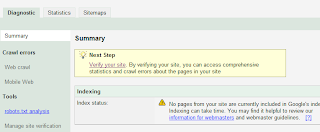 click on "verify your site"
3. You will goto another page and will be asked to "choose the verification method", select "Add a META tag", then you'll be given an unique code, copy that in head part of your html and "save the template".
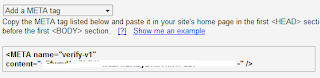
and click on verify. Now as your done with verification part, let us proceed and see how to add to add the site map of your blog or site.
Thats it! wait for some days and you'll see your site in the google search engine.
This is basically a computer program that accesses your page reads it, and will rate and categorise it within Google’s database of webpages.The first thing I suggest is to visit http://www.google.com/addurl/ and add your site to the list and provide all the details if necessary.
The next thing to note is that Google’s crawlers regularly crawl the internet and when they find a page they read all of the links off of that page and add them also to the crawl list. So the more people that link to your site, the more chance of you site being crawled. In the near future I will be setting up a link exchange for users who have pages relevant to mine to exchange links with me
Another way of adding yourself on to the Google crawl list and helping the Googlebots to find your website is to create a Google Site Map This is undoubtedly the best method and needs little patience, Let us discuss this in detail.
- Visit the following link https://www.google.com/webmasters/tools/siteoverview?hl=en_GB sign-in with you gmail id. Next add your site url eg:http://sordid-humor.blogspot.com
- Then you'll go to the page which appears like the following image.
 click on "verify your site"
3. You will goto another page and will be asked to "choose the verification method", select "Add a META tag", then you'll be given an unique code, copy that in head part of your html and "save the template".

and click on verify. Now as your done with verification part, let us proceed and see how to add to add the site map of your blog or site.
- Click on the first image and see, you'll be having three buttons referred as Diagnostics, Statistics and Sitemaps. Click on the Sitemaps and there you will fine a link called "Add a Sitemap" click on that.
- Youll proceed to new page, where you are asked to choose the type of your site map. There select "Add General Web Sitemap".
- Now this is tricky part, If your using any hosted web then you gotta build xml sitemap with the help of site map builders and place the link but if you are using blogger then its simple. You need to enter your atom.xml eg:http://sordid-humor.blogspot.com/atom.xml.


Thats it! wait for some days and you'll see your site in the google search engine.
Note: If you want google to update your site quickly then better try commenting in other blogs example mine :p, and increase your traffic.
Subscribe to:
Posts (Atom)